If you want to stream IPTV on your Android device using a MAG-style interface, this STB Emulator IPTV setup guide will help you configure everything step by step. STB Emulator is a popular Android application that simulates IPTV set-top boxes such as MAG devices, allowing users to connect compatible IPTV portal services directly from smartphones, Android TV boxes, tablets, and other supported devices. Additionally, the app provides a familiar IPTV interface for users who prefer portal-based navigation instead of playlist-based IPTV players. Because of this, many IPTV users choose STB Emulator for a more traditional IPTV viewing experience.
If you are new to IPTV streaming, you can first try our Free IPTV Trial to test compatibility and streaming performance before selecting a subscription plan.
What is STB Emulator?
STB Emulator is an Android application designed to emulate IPTV set-top boxes such as:
MAG 200
MAG 250
MAG 260
MAG 270
MAG 275
Aura HD
Moreover, the application allows Android devices to function similarly to dedicated IPTV boxes by supporting portal URL connections and IPTV middleware systems.
What You Need for STB Emulator IPTV Setup
Before starting the setup process, make sure you have:
Android device or Android TV box
Stable internet connection
IPTV portal URL
IPTV subscription access
STB Emulator application
Registered MAC address (if required by provider)
How to Setup IPTV on STB Emulator
Step 1: Download the STB Emulator App
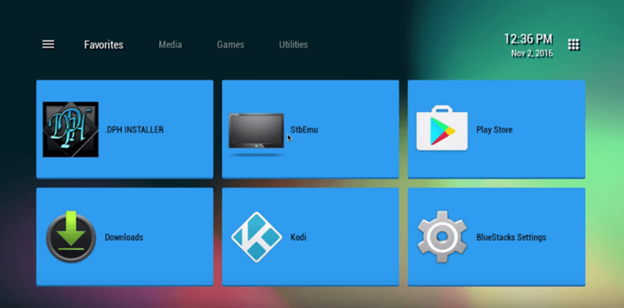
First, open the Google Play Store on your Android device. Then search for the STB Emulator application and install it. After installation, launch the app to continue setup.
Step 2: Open Settings and Check MAC Address
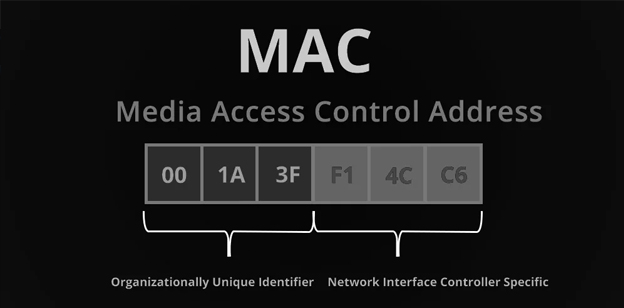
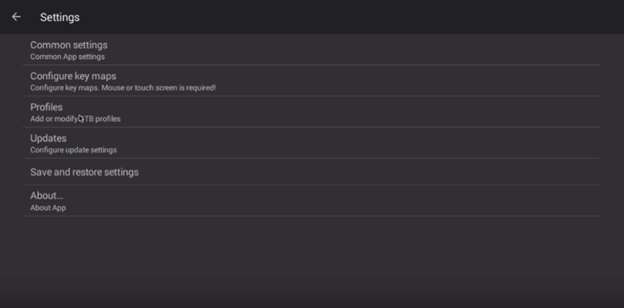
Next, open the application settings from the top-right menu area. Inside the settings section, locate the MAC address assigned to the emulator. Some IPTV services may require this MAC address for activation.
Step 3: Create a New IPTV Profile
After that, navigate to:
Profiles → Test Portal → Add Profile
Then create a new IPTV profile for your portal configuration.
Step 4: Select the STB Model
Now open the STB Model section and choose the appropriate MAG device profile.
Popular options include:
MAG 250
MAG 254
MAG 260
MAG 270
Choosing the correct model can improve compatibility with portal-based IPTV services.
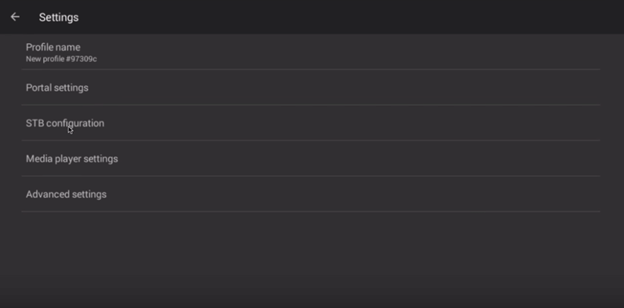
Step 5: Enter Portal URL Information
Next, open Portal Settings inside the profile configuration section. Here you need to enter:
Portal Name
Portal URL
The portal URL should be provided by your IPTV service provider. After entering the information, save the settings carefully.
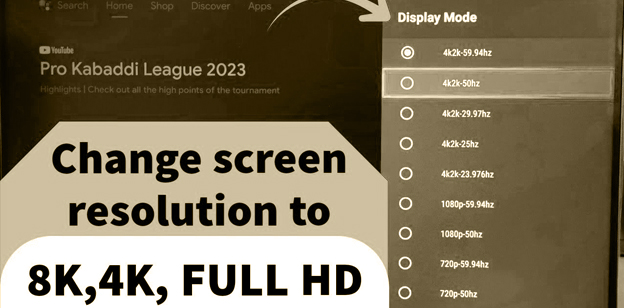
Step 6: Adjust Screen Resolution
For better streaming performance, you can configure the display resolution. Navigate to: Settings → Screen Resolution
Then select: 1280 × 720
This resolution generally works well on most Android IPTV devices.
Step 7: Restart the Application
Finally, close the application completely and reopen it. After restarting, the IPTV portal should load automatically, and available channels may appear depending on your service configuration.
Additional Streaming Tips
For a smoother IPTV streaming experience:
Use a stable Wi-Fi or Ethernet connection
Restart the app occasionally
Keep the Android device updated
Avoid running too many background apps
Use compatible IPTV portal settings
Meanwhile, if you experience setup problems, you can also read our IPTV FAQ guide for troubleshooting help.
Additionally, you can compare all available subscription options on our IPTV pricing page.
⚠️ Disclaimer
We provide IPTV setup tutorials and server connectivity guidance only. We do not host, store, or distribute any media content. Users are responsible for ensuring compliance with local laws and regulations in their country.