Amazon Firestick IPTV Setup Guide
If you’re looking for an easy Firestick IPTV setup guide, then this tutorial will help you configure IPTV step by step. Additionally, amazon Fire TV Stick devices are popular streaming devices that allow users to access internet-based entertainment services directly on their televisions. When combined with IPTV technology, Firestick devices provide a flexible streaming experience across live TV, movies, and on-demand content. Furthermore, Fire TV devices support various IPTV applications, making setup simple for both beginners and experienced users. If you’re new to IPTV streaming, you can first try a Free IPTV Trial to test compatibility and streaming performance before choosing a subscription plan.
What You Need Before Setup
Before starting the IPTV setup process, make sure you have:
- Amazon Fire TV Stick
- Stable internet connection
- IPTV subscription details
- IPTV app or portal URL
- Amazon account access
How to Setup IPTV on Firestick ↴
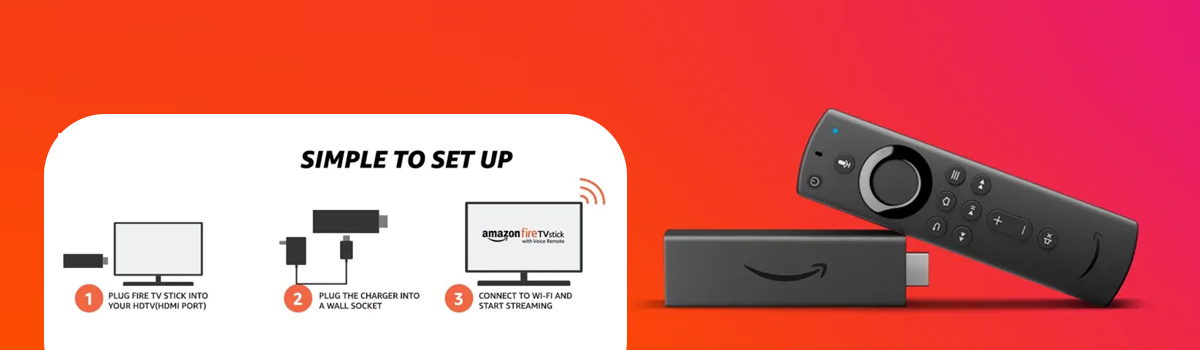
Step 1: Connect Your Fire TV Stick
Connect with firestick
First, connect the Fire TV Stick to your television’s HDMI port. Then:
- Connect the power adapter
- Switch your TV to the correct HDMI input
- Complete the initial Fire TV setup
- Connect to Wi-Fi and sign in to your Amazon account
Step 2: Enable Apps from Unknown Sources
However, some IPTV applications may require manual installation. To enable this option:
- Open Settings
- Select My Fire TV
- Open Developer Options
- Enable Apps from Unknown Sources
Step 3: Install the Downloader App
Next, install the Downloader application from the Amazon App Store. Additionally, this app helps install IPTV applications that are not directly available inside the default store.
Step 4: Install an IPTV Application
After that, open the Downloader app and install a compatible IPTV player. Popular IPTV applications include:
- IPTV Smarters
- TiviMate
- Smart IPTV
You can download IPTV Smarters from IPTV Smarters Official Website.
Step 5: Enter IPTV Subscription Details
Once the IPTV application is installed:
- Open the IPTV app
- Enter your username, password, and portal URL
- Save the configuration details
Afterwards, channels and available content should load automatically.
Step 6: Start Streaming
Finally, you can now browse channels, movies, and available streaming content directly from your Firestick device. If you later want a longer streaming plan, you can compare options on the IPTV pricing page.
Additional Streaming Tips
Meanwhile, for a smoother streaming experience:
- Use a stable internet connection
- Keep your Fire TV software updated
- Restart the device occasionally for better performance
For common IPTV troubleshooting help, you can also read the IPTV FAQ guide.
Compatible IPTV Applications
For example, popular IPTV applications include:
- IPTV Smarters
- TiviMate
- Smart IPTV
Compatible Devices
In addition, this IPTV setup method can also work on:
- Fire TV Stick Lite
- Fire TV Stick 4K
- Android TV devices
- Smart TVs
- Android streaming boxes
⚠️ Disclaimer
Furthermore, we provide IPTV setup guidance and technical instructions only. We do not host, store, or distribute any media content. Users are responsible for complying with local laws and regulations.
Learn More
To understand IPTV technology, see Internet Protocol television.