MAG IPTV setup

MAG IPTV Setup Guide – How to Configure MAG 250, 254 & 256

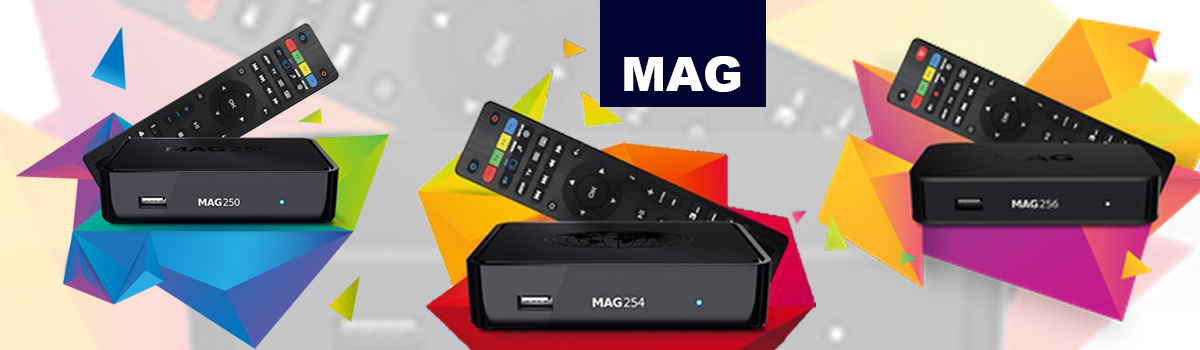
If you’re looking for a simple and reliable MAG IPTV setup, this step-by-step guide will help you configure your device quickly and correctly. A MAG box is a dedicated streaming device developed by Infomir, designed for IPTV (Internet Protocol Television). It allows users to stream live TV channels and on-demand content using an internet connection.

In this guide, you will learn how to setup IPTV on MAG box, including models MAG 250, MAG 254, and MAG 256.

What is MAG IPTV Setup?

Simply put, MAG IPTV setup means configuring your device using a portal URL provided by your IPTV service. Once everything is set correctly, the device loads the IPTV interface automatically. If you’re new, you can start with a Free IPTV Trial to test compatibility and performance before choosing a subscription plan.

Requirements for MAG box configuration

Before you begin, make sure you have the following:

  • MAG 250 / MAG 254 / MAG 256 device
  • A TV with HDMI input
  • A stable internet connection (Ethernet is recommended)
  • An active IPTV subscription with portal URL
  • HDMI cable
  • Remote control

How to Setup IPTV on MAG Box (Step-by-Step)

Follow the steps below ↴

First Open Settings

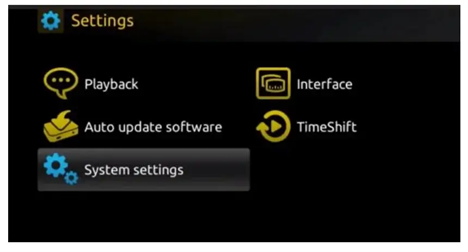
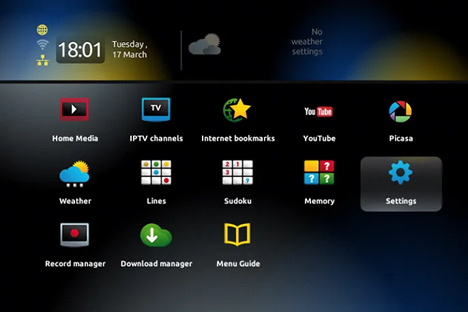
First, turn on your MAG device and go to the main screen. Then, select Settings.

MAG box IPTV setup

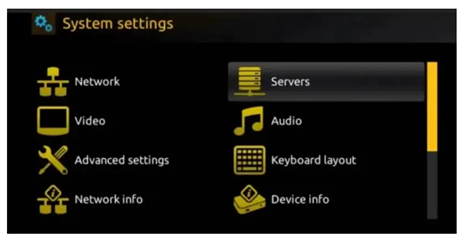
Next, enter the System Settings menu.

Settings menu interface on MAG device
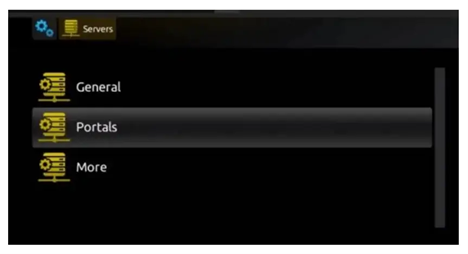
Server configuration screen
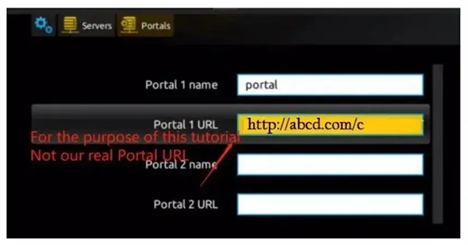
Portal configuration interface

Here, you need to enter:

  • Portal Name → You can enter any name
  • Portal URL → Enter the URL provided by your IPTV provider
IPTV home screen after setup

To activate your IPTV subscription, send us your MAC address (found on the label behind your MAG box). Once activated, we will send you a URL that you’ll need to input in this section.

  • Save Changes: After completing the fields, click ‘OK’ to save.
  • Exit Settings: Press ‘EXIT’ on the remote control.
  • Reboot the Box: Choose ‘OK’ to apply the changes by rebooting the device.

Setup Complete

Once the device restarts, the IPTV portal should load automatically. At this point, you can start exploring available channels and content. If you plan to continue using the service, you can explore different options on the IPTV pricing page to choose a suitable plan.

Supported Devices

This MAG device setup guide is compatible with:

  • MAG 250 IPTV setup
  • MAG 254 IPTV setup
  • MAG 256 IPTV setup

Troubleshooting Tips

If you experience any issues, try the following:

  • First, check your internet connection
  • Then, verify the portal URL
  • After that, restart your device
  • Finally, confirm your subscription is active

For more help, you can check the IPTV FAQ guide for detailed solutions.

⚠️ Disclaimer

We provide IPTV setup guidance and technical instructions only. We do not host, store, or distribute any media content. Therefore, users are responsible for complying with local laws.

Learn More

To understand IPTV technology, see Internet Protocol television.

Visit Others Devices Setup

Shopping Cart
Scroll to Top