Android IPTV Setup Guide for Smart TVs, Samsung, LG & Android Devices
Android devices are now one of the most popular ways to stream IPTV services. Whether you use a Smart TV, Samsung TV, LG TV, Android Box, or smartphone, IPTV applications make streaming simple and flexible across multiple supported devices. This Android IPTV setup guide explains how to configure IPTV apps step by step on compatible Android-powered devices.
In addition, new users can first try a Free IPTV Trial before choosing a longer streaming plan.
Before You Start
What You Need for Android IPTV Setup
Before starting the IPTV setup process, make sure you have:
- Smart TV, Android Box, or Android smartphone
- Stable internet connection
- IPTV subscription details
- IPTV application or portal URL
- Access to the Google Play Store or device app store
How to Setup IPTV on Android Smart TVs
Step 1: Install an IPTV Application
First, open the Google Play Store on your Android Smart TV. Then, search for a compatible IPTV application such as:
- IPTV Smarters
- TiviMate
- Smart IPTV
After that, install your preferred IPTV player.
Step 2: Open the IPTV App
Next, launch the IPTV application from your device menu. Most IPTV apps will ask you to enter your IPTV subscription details before loading channels and streaming content.
Step 3: Enter IPTV Subscription Details
Now, enter one of the following:
- M3U playlist URL
- Xtream Codes API details
- Username and password
- Portal URL
These details are usually provided by your IPTV service provider.
Step 4: Start Streaming
Once the setup is completed, the IPTV application should automatically load available channels and streaming content. You can then browse categories, live channels, and on-demand content directly from your Android device.
Samsung & LG Smart TV IPTV Setup
Samsung and LG Smart TVs use different operating systems such as Tizen OS and webOS. However, these devices still support IPTV applications through their official app stores. Popular IPTV apps for Samsung and LG TVs include:
- IPTV Smarter pro
- Smart IPTV
- SS IPTV
- OTT Player
In most cases, users only need to install the IPTV app, enter playlist details, and restart the application to strat streaming.
Android Box IPTV Setup
Android TV Boxes provide additional flexibility for IPTV streaming. Devices such as Android Boxes and streaming sticks support advanced IPTV applications with extra playback features. To configure IPTV on Android Boxes:
- Install an IPTV player
- Add your IPTV playlist or portal details
- Configure optional EPG settings
- Save the configuration
Afterwards, channels and streaming content should become available automatically.
Android Smartphone IPTV Setup
Android smartphones allow users to stream IPTV services while traveling or using mobile internet connections. To start streaming on Android smartphones:
- Install an IPTV application from the Play Store
- Enter IPTV playlist or Xtream Codes details
- Save the configuration
- Start streaming content
Additionally, many IPTV applications support casting content directly to Smart TVs.
Streaming Tips for Better Performance
Additional Streaming Tips
For a smoother IPTV streaming experience:
- Use a stable internet connection
- Keep your device software updated
- Restart the IPTV app occasionally
- Use compatible IPTV applications only
If you experience setup problems, you can also read the IPTV FAQ guide for troubleshooting help.
Supported Devices
Compatible Devices
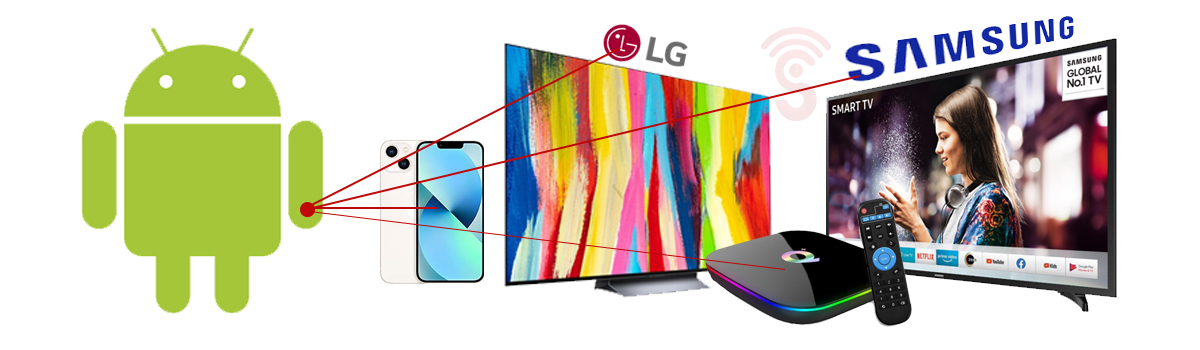
This IPTV setup method can work on:
- Android Smart TVs
- Samsung TVs
- LG TVs
- Android TV Boxes
- Android smartphones
- Streaming devices with Android support
Users who also stream on Firestick devices can read our Firestick IPTV setup guide.
Try Before Choosing a Long-Term Plan
Many users prefer testing IPTV compatibility before selecting a longer subscription plan. Therefore, new users can first start with a Free IPTV Trial to test streaming performance and device compatibility. In addition, users can compare available plans on the IPTV pricing page.
⚠️ Disclaimer
We provide IPTV setup guidance and streaming technology information only. We do not host, store, or distribute any media content. Users are responsible for complying with local laws and regulations when using third-party streaming services.
Learn More
To understand IPTV technology, see Internet Protocol television.