Apple IPTV Setup Guide for iPhone, iPad & Apple TV
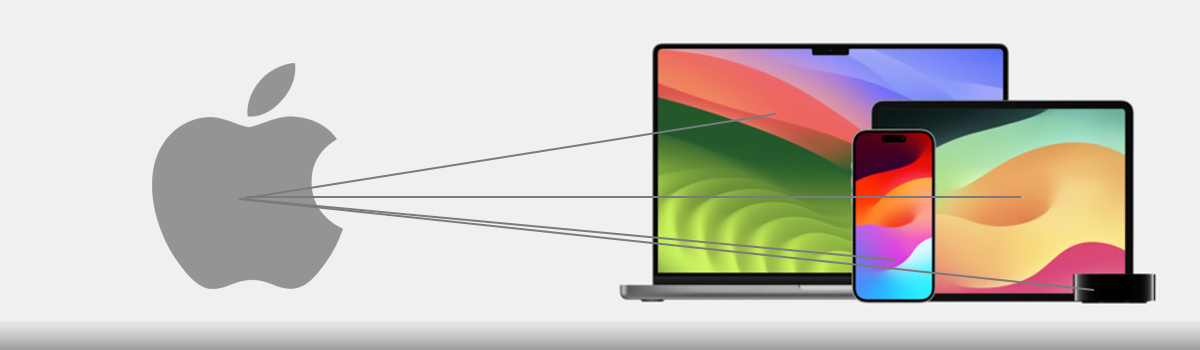
Apple devices provide a smooth and flexible way to stream IPTV services across multiple screens. Whether you use an iPhone, iPad, or Apple TV, IPTV applications allow users to access internet-based streaming services with a simple setup process. This Apple IPTV setup guide explains how to configure IPTV on Apple devices step by step. In addition, new users can first try a Free IPTV Trial before selecting a longer streaming plan.
What You Need for Apple IPTV Setup
Before setting up IPTV on your Apple device, make sure you have:
- iPhone, iPad, or Apple TV
- Stable internet connection
- IPTV subscription details
- IPTV application installed
- Access to the Apple App Store
How to Setup IPTV on Apple Devices
Step 1: Choose an IPTV Service
First, select a compatible IPTV service that supports Apple devices. Then, create your account and keep your IPTV login details available for the setup process. New users who want to test streaming compatibility can first try a Free IPTV Trial before choosing a subscription plan.
Step 2: Install an IPTV Application
Next, open the Apple App Store and install a compatible IPTV player application. Popular IPTV applications for Apple devices include:
- IPTV Smarters
- GSE Smart IPTV
- TiviMate
- Perfect Player
Afterwards, launch the IPTV app from your device menu.
Step 3: Enter IPTV Subscription Details
Now, enter the IPTV details provided by your IPTV service provider, such as:
- Username
- Password
- Portal URL
Some IPTV applications also allow users to upload playlist files directly inside the app.
Step 4: Customize the IPTV App
Once the IPTV configuration is completed, users can:
- Browse available channels
- Create favorite channel lists
- Adjust playback settings
- Configure streaming quality options
Additionally, some IPTV applications support advanced playback controls and multi-device synchronization.
Step 5: Start Streaming
Finally, you can begin streaming live channels and available content directly on your Apple device. If you later want a longer streaming plan, you can compare available options on the IPTV pricing page.
Streaming Tips for Better Performance
For a smoother IPTV streaming experience:
- Connect to a stable Wi-Fi network
- Keep your Apple device updated
- Restart IPTV apps occasionally
- Reduce heavy background internet usage
Meanwhile, users experiencing setup problems can also read the IPTV FAQ guide for troubleshooting help.
Compatible Apple Devices
This IPTV setup method can work on:
- iPhone
- iPad
- Apple TV
- iOS-supported devices
Users who also stream IPTV on Android devices can read our Android IPTV setup guide.
Why Many Users Prefer IPTV on Apple Devices
Apple devices are popular for IPTV streaming because they offer smooth performance, user-friendly navigation, and stable application support. In addition, IPTV apps on Apple devices are regularly updated for better streaming compatibility and improved playback features.
Furthermore, users can stream content across multiple Apple devices using the same IPTV application ecosystem.
⚠️ Disclaimer
We provide IPTV setup guidance and streaming technology information only. We do not host, store, or distribute any media content. Users are responsible for complying with local laws and regulations when using third-party streaming services.
Learn More
To understand IPTV technology, see Internet Protocol television.