Roku IPTV Setup Guide for Streaming Devices
If you want to stream IPTV content on your Roku device, this Roku IPTV setup guide will help you configure everything step by step. Although Roku devices do not directly support many IPTV applications, users can still stream IPTV content using screen mirroring, casting methods, and compatible playlist applications. Additionally, Roku devices are widely used because of their simple interface, smooth streaming experience, and compatibility with many entertainment platforms. By following the methods below, you can complete a smooth Roku IPTV setup and start streaming IPTV content on Roku devices quickly and easily. If you are new to IPTV streaming, you can first try our Free IPTV Trial to test compatibility and streaming performance before choosing a subscription plan.
What is Roku?
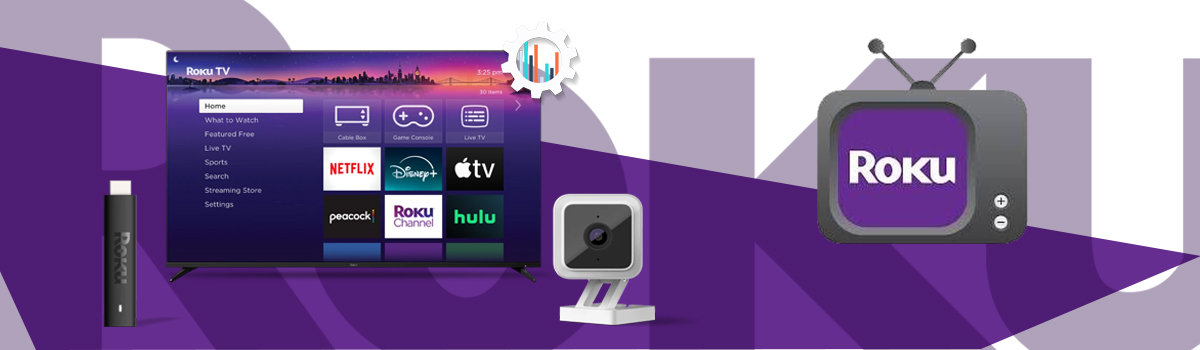
Roku is a digital media player that lets users stream internet content directly to their TVs. You can learn more about supported devices and streaming features on the Roku official website. Roku devices are available as:
- Roku Streaming Stick
- Roku Express
- Roku Ultra
- Roku TV
Additionally, Roku devices support screen mirroring and casting features that help users stream IPTV content from other devices.
What You Need for Roku IPTV Setup
Before starting setup, make sure you have:
- Roku device
- Stable internet connection
- IPTV subscription
- M3U playlist or portal URL
- Android phone, iPhone, tablet, or PC
Method 1: Screen Mirroring IPTV to Roku
One of the easiest ways to stream IPTV on Roku is through screen mirroring.
Follow the steps below ↴
Step 01
Enable Screen Mirroring on Roku
First, turn on your Roku device. Then follow these steps:
- Open Settings
- Navigate to System
- Select Screen Mirroring
- Set Screen Mirroring Mode to:
- Prompt
- Always Allow
This will allow compatible devices to mirror IPTV content to Roku.
Step 02
Mirror IPTV from Android Device
Next, open the screen mirroring option on your Android device. Depending on your phone model, the feature may appear as:
- Smart View
- Cast
- Screen Mirroring
- Wireless Display
Then:
- Select your Roku device
- Open your IPTV application
- Start streaming IPTV content
The screen should now appear on your Roku TV.
Step 03
Mirror IPTV from Windows PC
You can also stream IPTV from a Windows computer. On Windows:
- Open Settings
- Go to System
- Select Display
- Click Connect to a Wireless Display
- Choose your Roku device
After connecting:
- Open your IPTV player
- Start streaming IPTV content
The stream will automatically appear on Roku.
Method 2: Use IPTV Smarters with Roku
Another popular option is using IPTV Smarters through casting.
Follow the steps below ↴
Step 01
Install IPTV Smarters
First, install IPTV Smarters on your:
- Android device
- iPhone
- Tablet
After installation:
- Open the app
- Enter IPTV subscription details
- Load your IPTV playlist
Step 02
Cast IPTV to Roku
Next:
- Connect both devices to the same Wi-Fi network
- Open screen casting or mirroring settings
- Select your Roku device
- Start IPTV playback
The IPTV stream should now display on your Roku screen.
Method 3: Use an M3U Playlist Application
Some Roku-compatible applications support M3U playlists.
Follow the steps below ↴
Step 01
Install an M3U Playlist App
First:
- Open the Roku Channel Store
- Search for:
- M3U Playlist Player
- Install the application
Step 02
Add IPTV Playlist
After installation:
- Open the application
- Select Add Playlist
- Enter the M3U playlist URL
- Save playlist settings
Once completed, IPTV channels may begin loading automatically.
Screen Mirroring Not Working
If mirroring does not work:
- Ensure both devices use the same Wi-Fi network
- Restart Roku and the streaming device
- Re-enable screen mirroring permissions
IPTV Buffering Issues
For smoother playback:
- Use a stable internet connection
- Reduce network traffic
- Use faster Wi-Fi or Ethernet
- Restart the router if needed
Playlist Not Loading
If playlists fail to load:
- Double-check the M3U URL
- Verify the IPTV subscription is active
- Reload the playlist
Meanwhile, if you need additional help, you can also read our IPTV FAQ guide for troubleshooting assistance.
Supported Roku Devices
This IPTV setup method can work on:
- Roku Stick
- Roku Express
- Roku Ultra
- Roku TVs
- Roku Streaming Players
Related IPTV Setup Guides
You can also check:
Additionally, you can compare subscription options on our IPTV pricing page.
⚠️ Disclaimer
We provide IPTV setup tutorials and technical guidance only. We do not host, store, or distribute any media content. Users are responsible for ensuring compliance with local laws and regulations in their country.
Learn More
To understand IPTV technology, visit: Internet Protocol television on Wikipedia